
In Windows 7, when a user uses mouse to double click or press Enter key to open, explorer or drill down on a drive or folder, the folder trree on the navigation pane of Windows Explorer does not automatically expand the navigation pane’s tree to show and display current folder or directory user is at. In other words, Windows 7 Explorer’s navigation pane will stay at top level of a drive or folder, and does not expand the sub-folders branches, unless user manually expand the folder tree.

The behavior of Windows 7 Explorer is a total change from Windows Vista, Windows XP, Windows Server 2008 or earlier Windows operating system, where the Windows Explorer’s navigation pane will always automatically expand the folder tree to show the deepest or lowest level of folders been opened or arrived at.

Windows 7 actually does possess such ability to automatically expand navigation pane of Windows Explorer to current folder, but it’s turned off and disabled by default. For users who prefer that the navigation pane expands to follow their path into nested folders, the trick is indeed easy.

How to Make Windows Explorer Automatically Expand Navigation Pane to Current Folder in Windows 7

  1. Open Windows Explorer.
  2. Click on Organize pull down menu.
  3. Click on Folder and search options.
  4. Under the “Navigation pane” section, select and tick the check box for Automatically expend to current folder option.
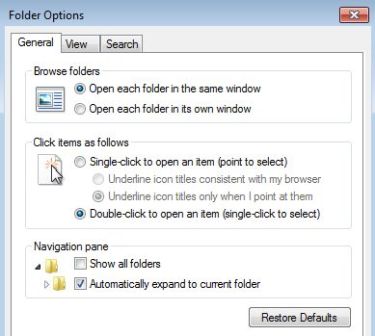
    Automatically Expand Windows 7 Navigation Pane to Current Folder

  5. Click OK.

With the setting enabled, the navigation pane of Windows 7 Explorer will automatically expand when user goes to sub-folder.

Check out also more than 30 Windows 7 hacks, tips and tricks.

Related Posts

  • Thanks!

  • Mesmer

    Exactly what I was looking for. Thanks very much.

  • uba

    Cheers! what more can i say. IT guy but new to win7. Little articles like this is why google is your(my) friend 🙂

    Thats not organisational, thats funtional!

  • Thantelius

    THANK YOU!

  • hugh

    I have a new HP G72-B60US running Windows 7 Professional. I tried all the tips and still cannot get the navigation pane to coordinate with the right pane. Is it possible that the HP implementation of Windows 7 is buggy?

    With XP you could traverse directories in the navigation pane with an arrow key and the contents were continually updated in the right pane. And when you moved among directories in the right pane using the arrow key, the appropriate directory was highlighted in the navigation pane.

    Windows 7 Explorer is very, very frustrating to use unless you like clicking the mouse like a sparrow pecking for seeds. Is there a third party Explorer that works like the XP version?

  • affableman

    You can do everything that's been suggested here and elsewhere and it doesn't work. Restart explorer all you want as I have and I'm running 64bit Win7 Pro. Still the same. Checking or unchecking those boxes has no effect.

    This is really lame of Microsoft. Really lame…

  • affableman

    Doesn't work. Microsoft has dumbed it down so much that it really blows.

    I guess they think it will make it easier for average users. It won't, they still have to be taught and the rest of us get to suffer for it.

    Really seems stupid to have to use a third-party app as file manager after all these years.

    What the hell were they thinking. There's an old saying in the IT business, "if it ain't broke, don't fix it".

  • hugh

    With XP, just moving the cursor over a directory name in the Navigation pane listed it's contents in the right pane. This allowed you to scroll through directories with just the arrow keys.

    I still can't get Windows 7 to display directory contents without left-clicking each directory name in the Navigation pane. Changing Folder and Search Options doesn't seem to help.

    Does anyone have a recommendation?

  • Russell

    Checked my settings under "organize" and "automatically expand to current folder" was already checked. Is there another step to this?

  • Paul Jackson

    1) You have to restart Explorer after making this change for it to stick.

    2) There needs to be another option to update the right pane when the selection in the navigation pane is changed by arrow keys (up/down, or left arrow to go up to next folder.

    3) The selection in the right pane needs to grey out when the focus is on the navigation pane. With the current setup, the right pane can show a single file selected in the bowels of a dir structure, but hitting delete wipes out your whole file system because you were unwittingly in the nav pane at the top of the tree. This happens to me all the time.

  • dave

    mmm, this is a small workaround for a bug in windows 7. Expand the tree and see the sub folders, or don't as the main folder jumps to the bottom of windows explorer and the sub folders are off the bottom of the screen, nice

  • MarvinK

    This only seems to work for folders that aren't hidden, etc. For example, if you're in C:ProgramDataWindowsStartMenu it won't expand… even with that option enabled. Very annoying.

  • David

    This isn't working for me. (Windows 7 home premium)

    Folder in left-hand pane does not expand when selected.

  • Amirz

    This is what im looking for! Thank you so much for the valuable info, cheers!

  • anon

    Ugh, yes the expand at bottom is incredibly annoying. I hope someone can find a reghack or something for this.

  • Ionut Danescu

    Thank you very much, this is exactly what i needed! Luck for me i wrote the right combination of words on google and landed on this post! THANK YOU!

  • Steven James

    You can also turn this feature on by right-clicking in the navigation pane itself.

  • Anders

    It would've been better to have it as in earlier versions than expansion at the bottom… very annoying indeed.

  • Bobo

    Leon, have you found the way to make it expand to the top of the pane?

    It makes me crazy when it always expands at the bottom and I can't see the folder I just opened.

  • John

    thanks! just what i needed

  • Leon

    Is there a way to get the expanded view at the top of the pane, as it was in previous Windows versions, rather than having it drop out of sight at the bottom so you always have to scroll it back up?

  • Pingback: Windows 7 Usage Guides, How-To Hacks, Tips and Tricks (Complete List) » Tip and Trick()