
Since Windows 95, all versions of Windows operating system has included a special shell folder named My Documents, or simply Documents in Windows Vista. Most programs and applications especially Microsoft products will automatically open My Documents as the default folder to save the files, images, pictures, videos, documents and etc. If you have another hard disk drive or partition, or just purchased an external portable USB/FireWire HDD drive, and would like to move the My Documents folder to another location on the same or different drive, it’s possible to change the My Documents folder default path or location to another folder.
Changing and moving “My Documents” (XP) or “Documents” (Vista) to another folder on different hard drive or partition has advantage of keeping the system partition clean and reduce the risk of running out of disk space. Beside, by placing and storing all personal or business documents, ideas, notes, files in My Documents folder that is on another separate drive or partition, users no need to worry about copy and backup the data if there is a need to format and reinstall the Windows, which may cause lost of all date stored in the My Documents in default location.
By default, the location of My Documents for your user account is located in %Userprofile% folder. For example, C:\Documents and Settings\user name\My Documents (in Windows XP or earlier) or C:\Users\user name\Documents (in Windows Vista), which is on the system drive itself.
A lot of My Documents folder location changing instruction requires modification of registry key at the following branch:
HKEY_CURRENT_USER\Software\Microsoft\Windows\CurrentVersion\Explorer\Shell Folders\
The registry mod may not work and the keys’ values may be reverted back to original after system restarts. There is a much simpler method to move and change the default location of the special shell folders, such as My Documents folder.
- Create a new folder that you want to assign as My Documents folder, if needed.
- Assign appropriate folder permissions if needed.
- Click Start.
- Right click on My Documents or Documents (for Vista). You can also right click on My Documents or Documents folder that appears in Windows Explorer, or in My Computer or Computer window (for Vista), then select Properties in the context menu.
- Click the Target tab (for XP or earlier version) or Location tab (in Vista).
- In the Target box (Target folder location in XP), type the path to the folder location that you want My Documents to be, and then click OK button. For example, D:\My New Documents Folder\. If the folder does not exist, the “Create Message” dialog box is displayed. Click Yes to create the folder, and then click OK.
Alternatively, click on Move, then select a new folder that you want to move My Documents to, and click OK to select the folder as new target. Click OK at Documents’ Properties. If you need to create a new folder, click Make New Folder shortcut, or right click on blank space then select New -> Folder. Type a name for the folder, and then click OK twice.
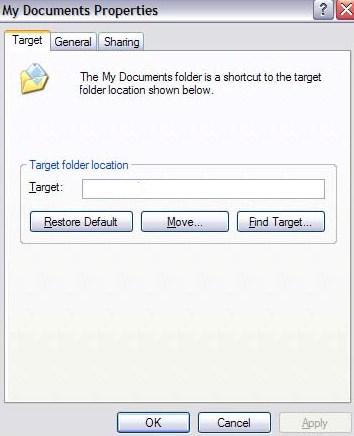
Note: The new target folder can be another place on same hard drive, another drive or another computer on your network.
- You have the option whether to let Windows move the files currently in the original My Documents folder to your new target folder. In the Move Documents dialog box, click Yes to move your documents to the new location, or click No to leave your documents in the original location.
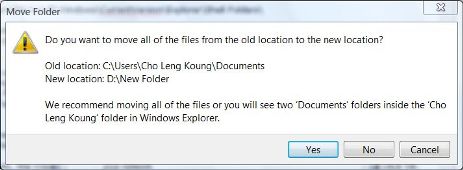
- My Documents now point to new folder location.
 Tip and Trick
- How To Download HBO Shows On iPhone, iPad Through Apple TV App
- Windows 10 Insider Preview Build 19025 (20H1) for PC Official Available for Insiders in Fast Ring – Here’s What’s News, Fixes, and Enhancement Changelog
- Kaspersky Total Security 2020 Free Download With License Serial Key
- Steganos Privacy Suite 19 Free Download With Genuine License Key
- Zemana AntiMalware Premium Free Download For Limited Time