
Whenever there is any system problem, especially the dread BSoD (Blue Screen of Death), most users first reaction is probably to go into Safe Mode to try to troubleshoot Windows. Safe Mode loads and starts just basis files and drivers necessary to run Windows.
Most drivers, including manufacturer’s driver to display adapter (graphic processing unit or accelerator GPU) is not been loaded. Thus, by default, Safe Mode normally has a screen resolution of just 800×600, causing a lot of components cannot be displayed and shown completely on screen, including the Start Menu and desktop icons, which has been realigned.
The worst part is that it seems like there is no way to change the any display settings such as desktop resolution and color quality at all. When user goes to Display Properties (in Windows XP) or Display Settings (in Windows Vista under Personalization), and try to change the screen resolution to higher resolution such as 1600×1200 or 1280×800 which is commonly used as native resolution in today’s modern LCD display panels, the Windows in Safe Mode simply does not respond to the OK or Apply button, and does not apply the change made.
Here’s a trick to change the screen resolution and color quality display settings in Safe Mode of Windows, with any registry hack or third party program.
Go to Display Properties (Windows XP) or Display Settings (Windows Vista) by right click on empty blank space on Desktop, then select Properties (Windows XP) or Personalize (Windows Vista).
Then change the resolution by sliding the Low to High slider bar. Do not press “OK” or “Apply” at this time. Instead, click on Advanced Settings, and then click OK. Windows in Safe Mode will change the screen resolution according to new settings, and prompt a “Monitor Settings” dialog box prompting that desktop has been reconfigured, with countdown timer. Click on Yes to keep the new settings.
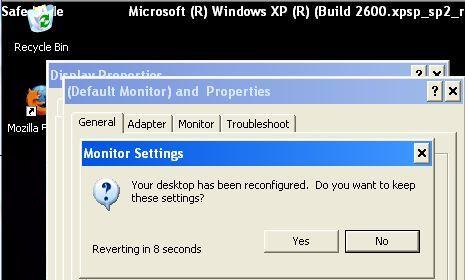
Alternatively, simply click on Advanced, go to Adapter tab, then click on List All Mode. Select a mode with screen resolution size and color mode that you prefer, and click on OK. Windows will apply the new resolution size and color quality on Safe Mode too.
 Tip and Trick
- How To Download HBO Shows On iPhone, iPad Through Apple TV App
- Windows 10 Insider Preview Build 19025 (20H1) for PC Official Available for Insiders in Fast Ring – Here’s What’s News, Fixes, and Enhancement Changelog
- Kaspersky Total Security 2020 Free Download With License Serial Key
- Steganos Privacy Suite 19 Free Download With Genuine License Key
- Zemana AntiMalware Premium Free Download For Limited Time