
Teredo is a transition technology that allows a computer or node located behind a IPv6-unaware network address translation (NAT) device to use IPv6 connectivity to communicate with other computers that use IPv6. Teredo tunneling technology defines a way of encapsulating IPv6 packets within IPv4 UDP datagrams that can be routed through NAT devices and on the IPv4 internet. IPv6 and Teredo is installed and enabled by default in Windows Vista, and users cannot uninstall them.
Users can turn off IPv6 support in Vista. Teredo client in Windows Vista is enabled but inactive by default, but it will activate automatically when required or firewall settings allow an application to use Toredo. When activated, the Teredo client must initially obtain information such as the type of NAT that the client is behind by connecting to one or more Teredo servers. To determine the IPv4 addresses of Teredo servers, the client may send a DNS query to resolve the name teredo.ipv6.microsoft.com. To prevent Teredo related DNS query, or for those who doesn’t use Teredo or IPv6, users can disable or control Teredo in Windows Vista by using the following methods. Microsoft confirms that it is usually workable to disable Teredo, because other technologies can be used instead, for example, Intra-Site Automatic Tunnel Addressing Protocol (ISATAP).
Turn Off Teredo by Using the Netsh Command
- Open elevated command prompt by clicking on Start, click All Programs, click Accessories, right-click Command Prompt, and click Run as Administrator.
If the User Account Control dialog box appears, confirm that the action it displays is what you want, and then click Continue.
- At the command prompt, type the following lines (press ENTER after each line):
netsh
interface
teredo
- At the netsh interface teredo command prompt, type:
set state disabled
Note: The last 2 commands can be combined into the following single command to disable Teredo:
netsh interface teredo set state disabled
Turn Off Teredo by Specifying a Registry Setting
- Run Registry Editor by typing the following text in Start Search and then press Enter:
regedit
If the User Account Control dialog box appears, confirm that the action it displays is what you want, and then click Continue.
- Navigate to the following registry key:
HKEY_LOCAL_MACHINE\SYSTEM\CurrentControlSet\Services\Tcpip6\Parameters\
- Right-click “Parameters”, select “New” in the contextual menu, then select “DWORD Value”, and then type the following name for the new value (type the name exactly as shown, including capitalization):
DisabledComponents
- Double-click “DisabledComponents”, select Hexadecimal, and then in Value data, type:
8
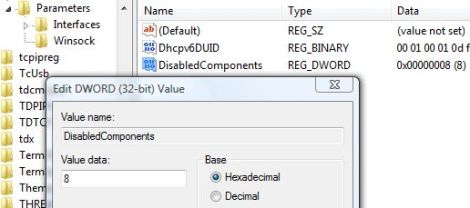
- Click OK.
- Restart the computer.
Turn Off Teredo by Using Graphical User Interface
- Click Start, then Control Panel.
- Click on “System and Maintenance” link.
- Click on “Device Manager”.
Click Continue on UAC prompt.
- In device manager, click the “View” menu and select (tick) “Show hidden devices”.
- Expand the “Network Adapters” tree.
- Right click on “Teredo Tunneling Pseudo-Interface” and select “Disable”.
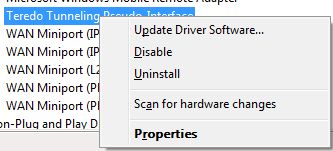
- Right click on “6to4 Adapter” and select “Disable”.
 Tip and Trick
- How To Download HBO Shows On iPhone, iPad Through Apple TV App
- Windows 10 Insider Preview Build 19025 (20H1) for PC Official Available for Insiders in Fast Ring – Here’s What’s News, Fixes, and Enhancement Changelog
- Kaspersky Total Security 2020 Free Download With License Serial Key
- Steganos Privacy Suite 19 Free Download With Genuine License Key
- Zemana AntiMalware Premium Free Download For Limited Time