
Windows Media Center is meant to serve as an application that turns PC into a home-entertainment hub, which can be controlled by a special remote control with a dominant Green Button. Windows Media Center (MCE) is a feature included in Windows Vista Home Premium and Vista Ultimate editions. However, not all users of Vista Ultimate or Home Premium will require the Media Center. But, users cannot uninstall Vista Media Center from Control Panel Uninstall Programs and Features or turn Windows Features on or off page as there is no Windows Media Center entry.
Even though Windows Media Centre is integrated part of the operating system and cannot be uninstalled or removed from Vista, the WMC services can be turned off and disabled so that it won’t run or start even when WMC button is pressed or when users click from Start Menu, exactly as if Media Center is not installed. In fact, there are more than one way to disable Windows Media Center or prevent it from running in Vista.
Disable Windows Media Center Services
Open Services (type services.msc into Start Search). Locate all services related to Windows Media Center, such as Windows Media Center Extender Service, Windows Media Center Receiver Service, Windows Media Center Scheduler Service and Windows Media Center Service Launcher, and any other services started with “eh” as command names, then set their Startup Type to Disabled.
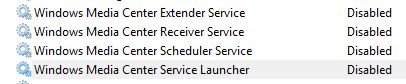
Stop Windows Media Center Services from Start Up
Run MSConfig (System Configuration) and go to Startup tab. Uncheck the item entries which has the ehome as path to the command, such as ehTray.exe. This will prevent MCE related services to be startup up. To be safe, you still need to disable WMC services as above.
Use Non-Premium editions of Vista
A radical and possibly costly workaround, by switching to use Windows Vista Home Basic or Windows Vista Business which do not bundled Windows Media Center as a package.
Disable Windows Media Center using Group Policy (or Registry)
Run Group Policy Object Editor (GPEdit.msc), expand Computer Configuration (for per-machine settings if you want disable for all users on the computer) or User Configuration (for per-user settings if you want to disable for logged on user only), then expand Administrative Templates, and finally Windows Components, and select Windows Media Center. Change the setting for Do not allow Windows Media Center to run to Enabled. Once WMC disable policy is set, the following message will appear whenever users trying to run Windows Media Center.
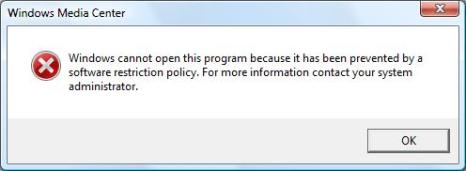
Windows cannot open this program because it has been prevented by a software restriction policy. For more information contact your system administrator.
Windows Vista Home Premium edition does not come with GPEdit.msc (Group Policy Editor), however the policy that block MCE from running can still be set manually in registry, and will be honored by the operating system. To set the policy registry key, open Registry Editor, and navigate to the following registry key:
HKEY_LOCAL_MACHINE\SOFTWARE\Policies\Microsoft
Right click on Microsoft and create a New Key named WindowsMediaCenter (no space in between). Under “WindowsMediaCenter” registry branch, create a new DWORD (32-bit) Value named MediaCenter, and set its value data to 1.
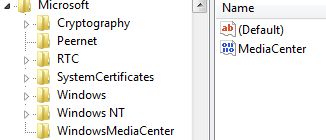
Alternatively, simply run the following command in elevated privilege command prompt:
reg add HKLM\SOFTWARE\Policies\Microsoft\WindowsMediaCenter /v MediaCenter /t REG_DWORD /d 1 /f
To revert and re-enable MCE, simply delete the WindowsMediaCenter registry key created in Registry Editor, or run the following command in elevated privilege command prompt:
reg delete HKLM\SOFTWARE\Policies\Microsoft\WindowsMediaCenter /v MediaCenter /f
 Tip and Trick
- How To Download HBO Shows On iPhone, iPad Through Apple TV App
- Windows 10 Insider Preview Build 19025 (20H1) for PC Official Available for Insiders in Fast Ring – Here’s What’s News, Fixes, and Enhancement Changelog
- Kaspersky Total Security 2020 Free Download With License Serial Key
- Steganos Privacy Suite 19 Free Download With Genuine License Key
- Zemana AntiMalware Premium Free Download For Limited Time